
Last updated 08-13-2026
Category:
Reviews:
Join thousands of AI enthusiasts in the World of AI!
AI Portrait in Filmora
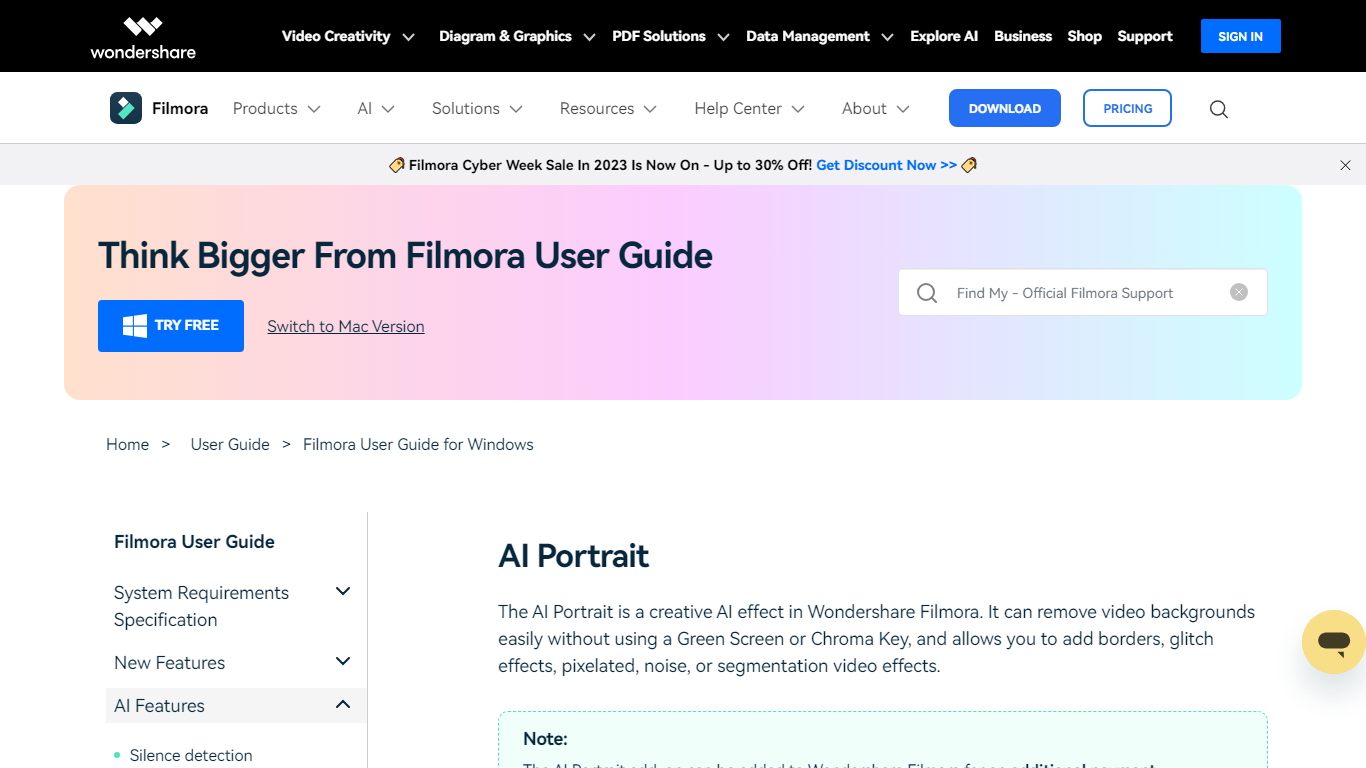
AI Portrait in Filmora is a video editing feature inside Wondershare Filmora for Windows that removes portrait backgrounds without a green screen. You stack portrait footage above a background clip, enable AI Portrait Cutout, and Filmora makes the subject transparent so you can composite the person over another scene.
Standalone background removers export a cutout file you re-import elsewhere. Filmora keeps the workflow on the timeline with Advanced and Quick cutout modes, plus 70 plus body and sticker effects you can layer directly on the subject. That makes it a fit when you already edit in Filmora and want portrait compositing beside the rest of your cuts.
It suits YouTube creators, tutorial makers, and social editors who film talking-head clips at home without chroma key gear. Editors who need a dedicated rotoscoping app or node-based compositing will outgrow what this guide-page feature offers on its own.
AI Portrait Cutout detects people in video or images and removes the background automatically
Works without a green screen or chroma key setup according to the official guide
Offers Advanced Cutout Mode and Quick Cutout Mode for different processing speeds
Includes 70 plus body effects and sticker effects to stylize the subject
Layers portrait footage above a background clip directly on the Filmora timeline
Body effects can be added from the AI Portrait panel or the Effects toolbar
Exports finished composites through Filmora standard export workflow on Windows
Removes portrait backgrounds inside Filmora without setting up a green screen
Advanced and Quick cutout modes give a speed versus quality choice
70 plus body and sticker effects ship with the same feature panel
Timeline compositing keeps background and portrait clips editable together
This guide covers the Windows desktop editor, not a standalone web cutout app
Many Filmora AI tools, including advanced AI features, consume paid AI credits
Fine control still requires manual positioning and effect parameter tweaks
Heavy portrait work depends on buying or subscribing to full Filmora, not this page alone
What is AI Portrait in Filmora?
AI Portrait in Filmora is Filmora's AI Portrait Cutout feature for Windows. The guide says it detects portraits in video or images, removes the background without a green screen, and supports 70 plus body and sticker effects.
Does AI Portrait in Filmora need a green screen?
No. AI Portrait in Filmora's guide states you can remove backgrounds easily without a green screen or chroma key background. Filmora makes the portrait footage transparent after you enable AI Portrait Cutout.
How do you enable AI Portrait in Filmora?
AI Portrait in Filmora is enabled by double-clicking a timeline clip and checking AI Portrait Cutout, or by selecting the clip and clicking the AI Portrait Cutout toolbar icon. Place portrait media on a track above your background first.
What cutout modes does AI Portrait in Filmora offer?
AI Portrait in Filmora provides Advanced Cutout Mode and Quick Cutout Mode. The official guide lists both options when you turn on AI Portrait Cutout on a selected clip.
Is AI Portrait in Filmora free?
AI Portrait in Filmora is part of Wondershare Filmora, which has a free tier and paid plans. Filmora's shop lists a Forever free plan plus Advanced at US$59.99 per year and paid AI credit usage for many AI tools.
Which platform supports AI Portrait in Filmora?
This AI Portrait in Filmora guide covers the Windows Filmora editor. The page links to separate Mac and mobile guides for related portrait tools on other platforms.