
Last updated 08-14-2026
Category:
Reviews:
Join thousands of AI enthusiasts in the World of AI!
SQL Genius
Type an English question into SQL Genius and it returns a Postgres SQL query built from the table schemas you define on the page. You add one or more tables with column names and types, describe the result you want in plain language, and hit Write SQL to generate the statement. A separate SQL Explainer panel lets you paste existing SQL and read a plain-language breakdown of what each clause does.
Dedicated text-to-SQL tools usually assume you already know your schema. SQL Genius keeps schema editing in the same workspace as query generation, with sample hospital tables like patients, doctors, and admissions preloaded so you can test queries immediately. The Advanced SQL Type selector targets Postgres SQL specifically, which narrows the output compared with generators that claim every database dialect.
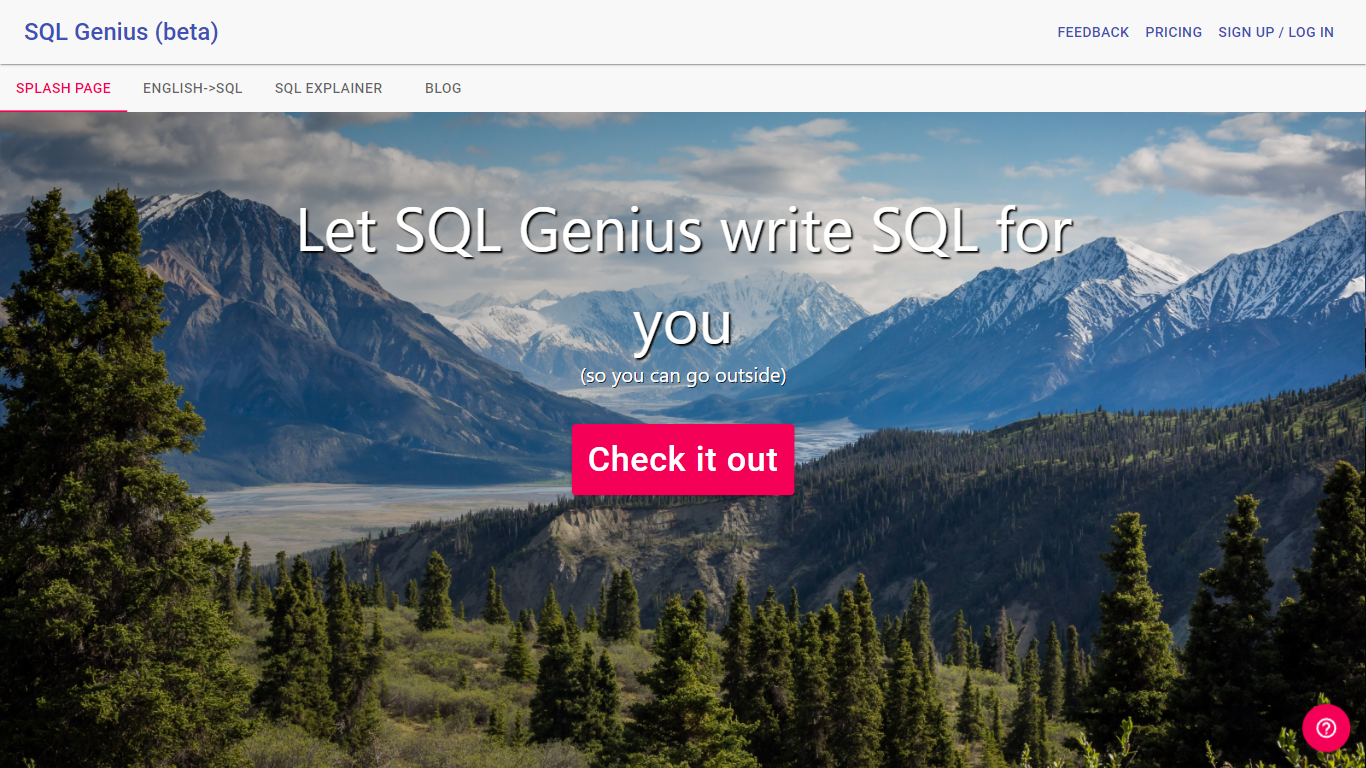
Analysts, researchers, and junior developers who know their data model but not SQL syntax use it to draft queries faster and sanity-check statements before running them in a database client. The site labels the product as beta and routes English-to-SQL, SQL Explainer, and a blog from the top navigation.
Define multiple table schemas with column names and data types before generating SQL
English-to-SQL writer targets Postgres SQL via the Advanced SQL Type selector
SQL Explainer panel formats pasted queries and returns plain-language explanations
Preloaded sample tables include patients, doctors, and admissions schemas
Add New Table button builds multi-table joins without leaving the editor
Sign Up and Log In accounts gate access beyond the public demo workspace
Schema editor and English-to-SQL generator share one workspace.
SQL Explainer converts pasted queries into readable explanations.
Sample hospital tables let you test queries without uploading data.
Advanced SQL Type selector lists Postgres SQL only on the live interface.
Product header still marks the app as beta with account signup required for full access.
Pricing details were not visible in fetched page content during this enrichment.
What database does SQL Genius target?
SQL Genius generates Postgres SQL through the Advanced SQL Type selector on the English-to-SQL page. You define table schemas in the browser, write your question in English, and the tool returns a Postgres-formatted query.
How do I use SQL Genius without writing SQL?
SQL Genius lets you add table schemas, type a question in the My Query box, and click Write SQL. The generated statement appears in the Formatted Query panel ready to copy into your database client.
Can SQL Genius explain existing SQL code?
Yes. SQL Genius includes a SQL Explainer page where you paste a query, click Explain SQL, and read a plain-language explanation in the Query explained panel below the formatted code.
Does SQL Genius support multiple tables?
SQL Genius lets you add several tables with individual schemas using the Add New Table control. Each table lists column names and types so joins across admissions, patients, and doctors tables can be generated from one English prompt.
Is SQL Genius still in beta?
The SQL Genius header labels the product as beta on the English-to-SQL and homepage interfaces. Sign Up and Log In links appear in the navigation for account access beyond the demo workspace.
What pages does SQL Genius offer besides query writing?
SQL Genius navigation links to English-to-SQL, SQL Explainer, Pricing, and a Blog from the main toolbar. Feedback and account links sit alongside those core tools in the header.